How does Sucuri enhance Website Security?       

How does Sucuri enhance Website Security?       

Overview on Sucuri
What is Sucuri?
Today, the commonest question that baffles app owners is: “How to secure a website against hackers?” Here is one of the viable solution to this issue – Sucuri, a cloud-based platform ensures website security by implementing strategies that keep a website clean and protect it from all sorts of security threats including hacking, malware attacks, DDoS, and blacklists. The adept professionals at Sucuri are capable of fixing hacks and they adopt suitable measures for preventing future hacks/attacks.
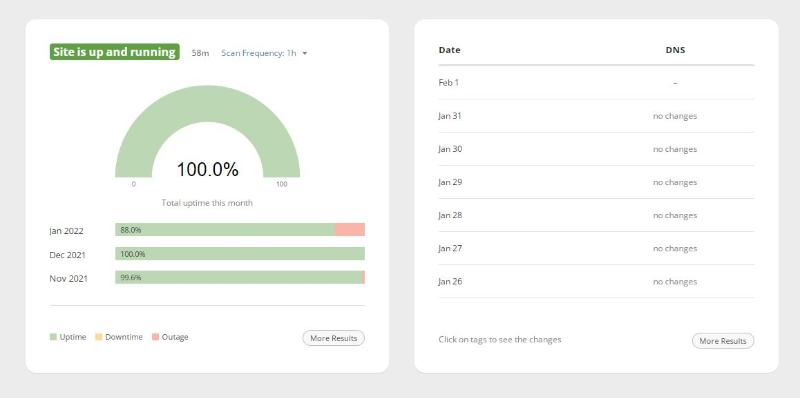
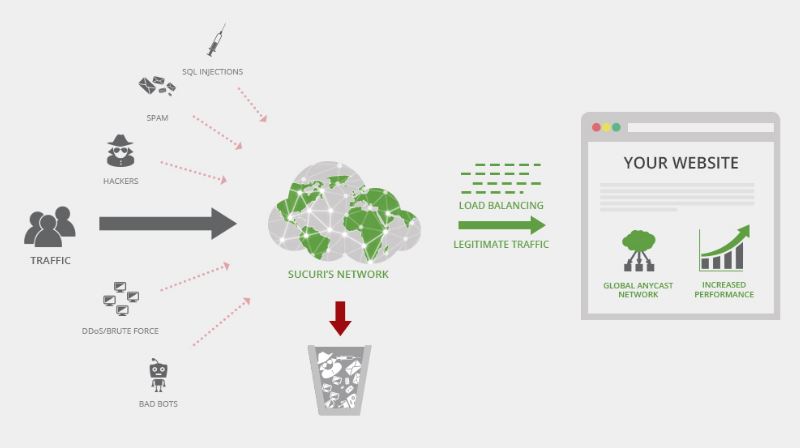
When Sucuri is enabled, the entire traffic of the website passes through Sucuri’s cloud proxy firewall before reaching the hosting server. This approach enables Sucuri to block all security breaches/attacks and only send the legitimate/relevant visitors to the website. So web app development companies can take the leverage of this tool to make their site more secured. Now, let’s take a look at how Sucuri works; the reference screenshots provided will provide better clarity and help you understand better on how to configure your site for better protection.

The Basic outline of Sucuri’s Network
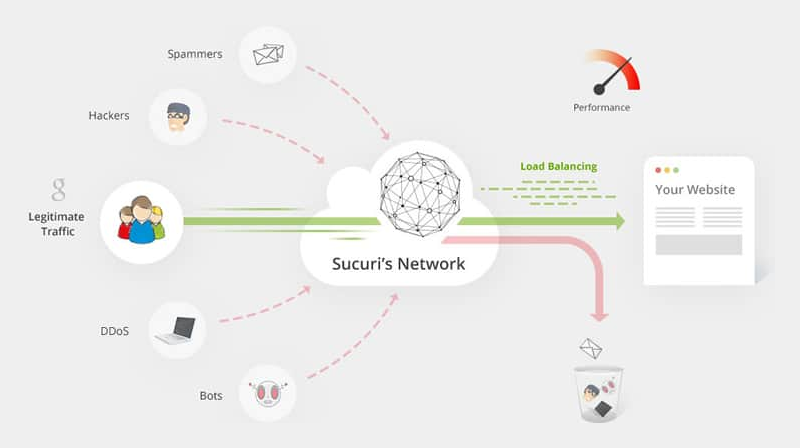
Sucuri’s domain-specific services include the elimination of website security threats through monitoring, Firewall, and Backup services for websites.

Sucuri’s Pricing Model

Refer to the following link to check out the details of Sucuri’s pricing model.
Sucuri’s pricing model: In a nutshell
  • Sucuri offers 3 plans – A Basic Platform, a Pro Platform, and a Business Platform
  • Please note that each pricing plan supports only one website (domain) by default; reference URL: https://sucuri.net/faq/ question: How do you define a website?
    • The Single license plan will work for: example.com/blog and example.com/forum, and this will be treated as a single website
    • Multiple licenses is required if:
      • awesomedomain.com directs traffic to somesite.com/blog
      • blog.example.com or forum.example.com will need 3 different licenses – 2 for each blog and forum; and 1 for example.com

How to set up Sucuri: Key Steps

Peek through the steps of setting up this website security and protection platform. Here we go!
1. Logging in
  • For logging in to Sucuri you have 2 options to choose from:
  • Then, you will be redirected to the login page and you need to log in using the login details you are having.
2. Adding and Scanning the website domain
    • After the login process is completed, the first-time users will be redirected to the “Add site” screen, as provided in the following screenshot:
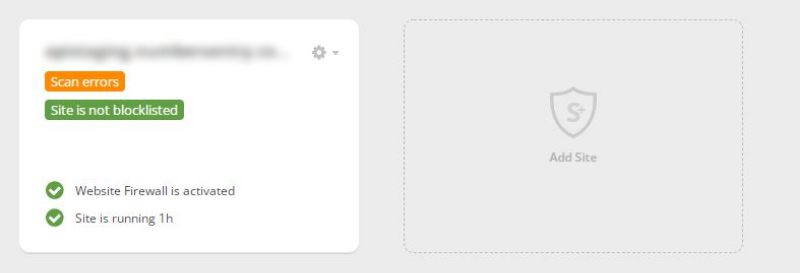
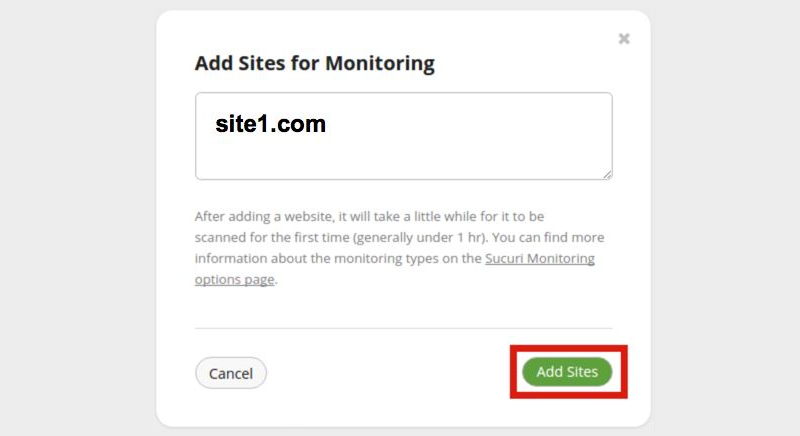
    • Thereafter, click on the “Add Site” button to add the site for monitoring. This click will open a pop-up screen, where you need to add the website domain. Enter the website domain in the given text space. It will take some time to get scanned when entered for the first time. Check out the following screenshot for reference:
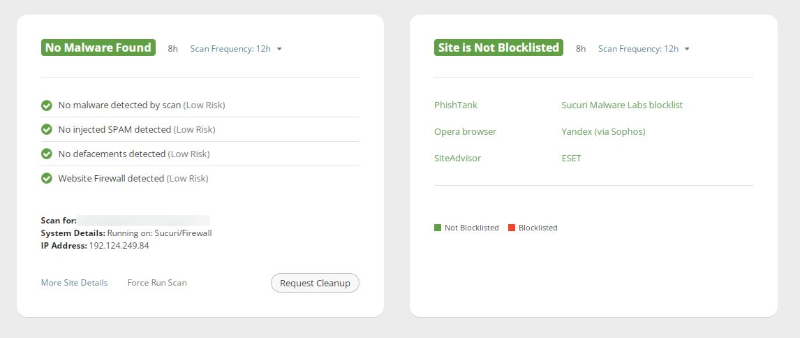
    • After the scan is completed, the result will be displayed as shown in the screenshot provided below – it will inform you whether the site is under malware attack or not, it will also let you know whether the site has been blocked by any Antivirus, etc. Check out the screenshot given below for reference:
3. Enabling the server-side Scanner
Now, we need to enable the server-side scanner. For executing this step, you need to go to Monitoring -> Settings -> Server Side Scanner; refer to the screenshot given below:
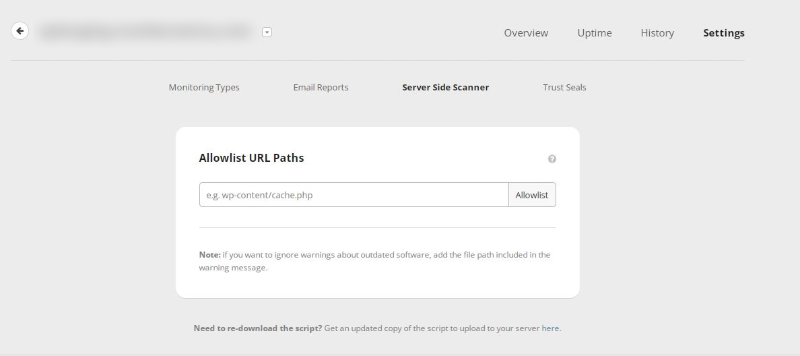
  • To enable the server-side scanner, Sucuri uses a file that needs to be uploaded at the root directory of the website and so, Sucuri will ask for FTP/SFTP details for uploading the file on the server. Thereafter, it does not require the FTP/SFTP as it is a one-time process. This step can be executed manually as well. Here goes the process:
    • Enabling the server-side scanner via FTP/SFTP – Sucuri will provide the form as given below for receiving the FTP/SFTP details; refer to the following screenshot:
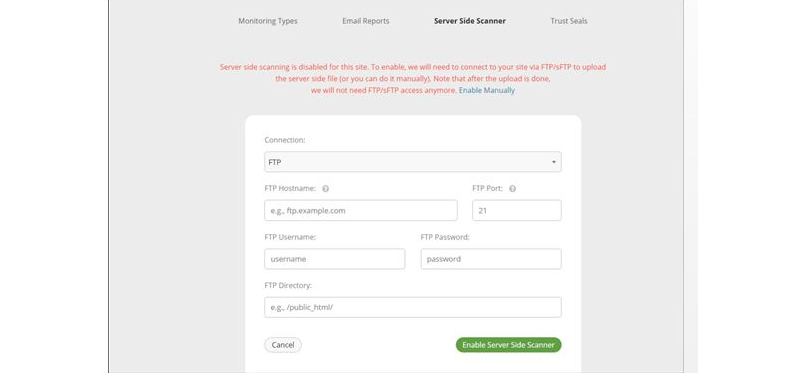
    • Enabling the server-side scanner manually instead of providing FTP/SFTP details: Click on the blue line labeled as “Enable Manually”. You will be provided with an option to download the file. Download that file manually, upload it on the server at the root level, and then click on the button “Verify File and Enable”.
4. Adding Firewall
Now you need to add a firewall for your site.
  • Click on the Firewall menu given on the top of the main menu bar, check out the screenshot provided below for reference:

    • For first-time users, a screen will be displayed which will ask the user to protect the site.
    • When you select to protect the site, a pop-up bar will be displayed and it will ask you to add the website domain for the firewall.
  • Here, if your website is under a DDoS attack, you can click the first option
  • If you’ve got a WordPress site or any CMS site, and wish to restrict the access of its admin panel for the general public and enable it only for the IP addresses which are whitelisted, you need to select the second option.
  • Depending on the requirement you can decide whether or not you should use Sucuri’s DNS servers. And, if you wish to use DNS servers, you need to select the third option.
  • Thereafter, click on “Add Site”. It will activate the firewall and generate a firewall IP, and will also download copies of the website content to Sucuri’s network.
  • You need to switch the DNS (www.example.com) to point to the newly generated firewall IP of Sucuri. Before that, when we click on “Add Site”, it will show a warning that “the Service is Not Activated, and that’s because we’ve not yet switched the DNS to point Sucuri’s firewall IP.” Before switching to the DNS, we can test whether Sucuri’s network has downloaded the website content properly or not, and for this, Sucuri’s provides its internal Sucuri Firewall Domain. Click on this, and if you find that the website is loading properly, it indicates that everything has gone well so far.
  • After switching the DNS (www.example.com) to Sucuri’s Firewall IP in a domain management service provider like godaddy.com, AWS, etc. if we visit Sucuri’s Firewall menu; it will show that the Firewall Service is ‘Activated’ and that the domain is pointing to firewall IP.
Now, take a look at certain crucial Firewall settings that need to be established
Access Control:
    • Allow IP Addresses: Here if you have provided restricted access only for the whitelisted IP addresses, you can add IPs for whitelisting them. Sucuri provides some options while whitelisting the IP – time-based whitelisting for IP that is been going to be added, for a duration of 30 mins, 1 hr, 3 hrs, 6 hrs, 12 hrs, 1 day, or for a permanent period.
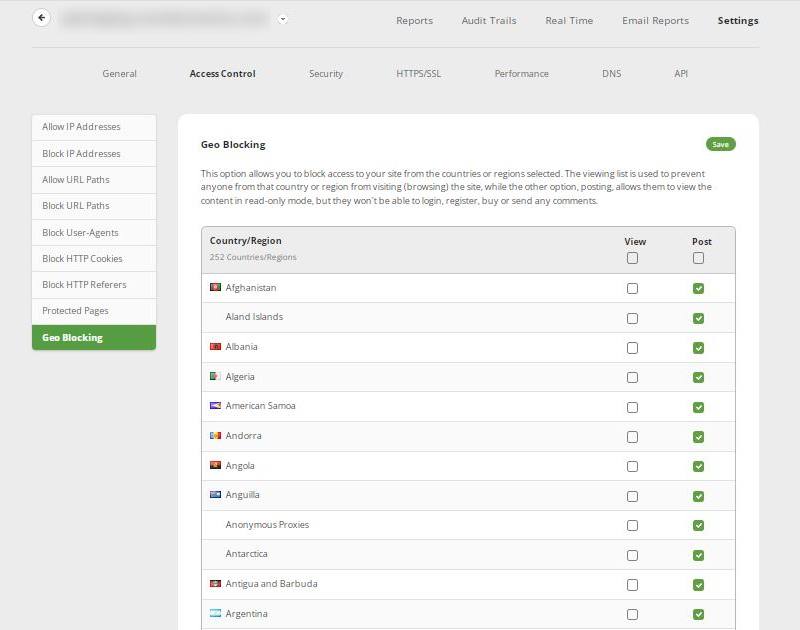
    • Geo-Blocking: Here, you can block access to your website based on geo-location – you can restrict users belonging to certain countries/regions from accessing the website. Sucuri provides some options like “View” and “Post.” Read the description given below for figuring out what View and Post will do; refer to the screenshot given below:
Security:
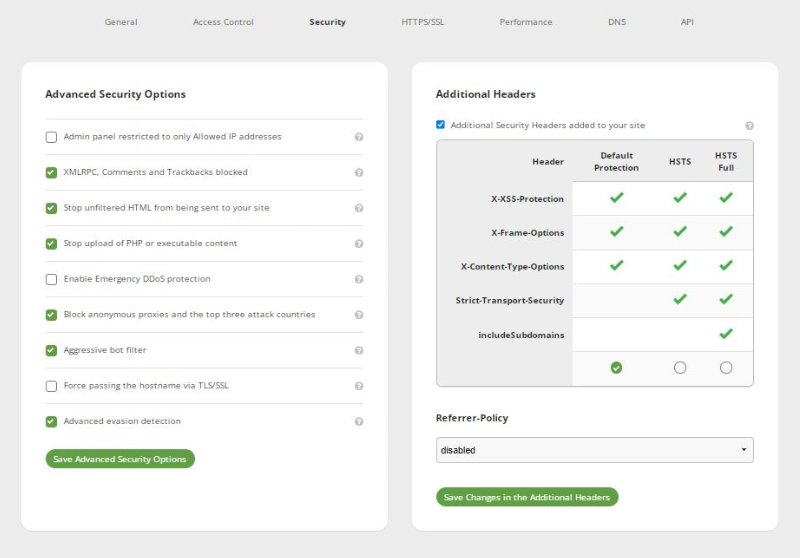
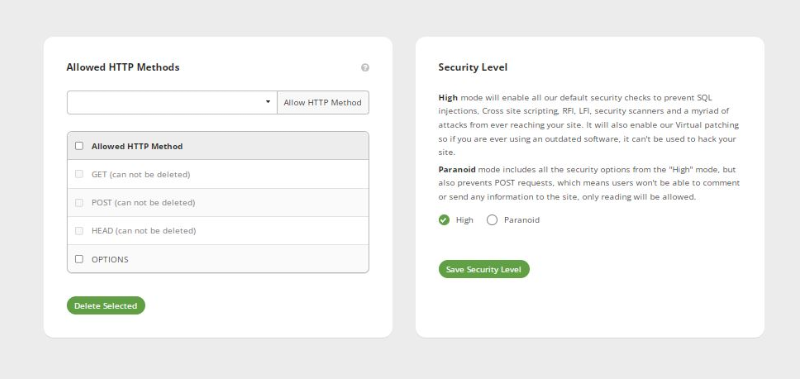
    • As given in the screenshot provided below, the options that are provided inside the orange-colored box under the button “Advanced Security Options,” are the options that are most likely to be enabled.
    • The options that are provided inside the yellow-colored box are related to WordPress. Here, the first option restricts the Admin panel from being publicly accessed and the second set of options restricts comments, etc. Refer to the screenshot given below:
Key Takeaway

So, isn’t Sucuri a good tool to adopt for protecting your website from data breaches and ensuring website security? We are an experienced and technically sound IT firm outsourcing software development services to a global clientele. We have helped several entrepreneurs to establish their digital footprints without any hassles.

Uploading and Publishing an App to the Google Play Store: Step-by-step Guidance!

Uploading and Publishing an App to the Google Play Store: Step-by-step Guidance!
mobile app development company
You’re finally done with developing an outstanding application and cannot wait to introduce it to the target users! Sounds great! Nevertheless, you are wondering how to execute the subsequent process – uploading and publishing the app on the Google Play Store.
For beginners and novices, this process might seem tricky and confusing. Hence, app creators/owners must be thoroughly aware of the entire process; whether they are doing it themselves or outsourcing the entire project to a mobile app development company.
This post provides step-by-step guidance on how to upload and publish an app to the Google Play Store. So, here we go!

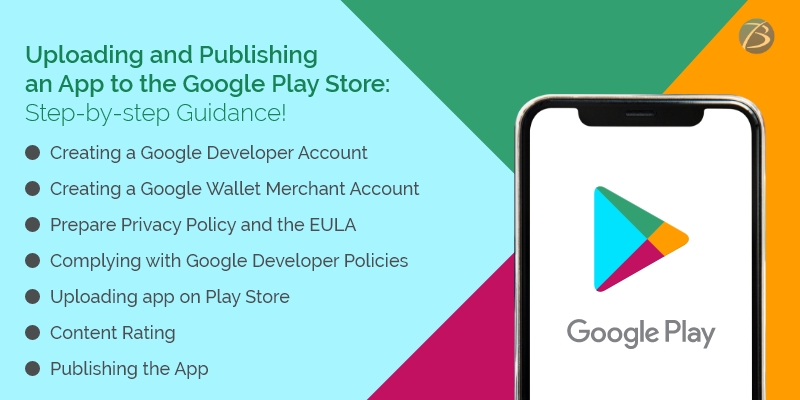
Uploading and Publishing an App to the Google Play Store: Major Steps

offshore software development services
Creating a Google Developer Account using Google Play Developer Console
A developer dashboard is a mandatory prerequisite for uploading an Android app to the play store. For this, use the Google Play console – a type of backend controlling center that enables mobile app developers to submit Android apps to the Play Store. A one-time charge amounting to 25$ has to be paid for opening a developer account. No additional charges are levied while updating apps in the future. Furthermore, the same developer account can be used for publishing several Android applications. The developer account comes with loads of functions and control features and allows free uploading of Google Play Store apps. After the developer account request is submitted, it takes up to 48 hours for getting approved.
Check out the steps for creating a developer account:
  • Creating a Google account: A Gmail ID that will be linked to your Google Developer account.
  • Creating a Google developer account in Google Play Console: You need to log in using Google credentials, and then check the box for accepting the agreement concerning your app’s distribution on Google Play. Thereafter, your Google account gets connected with your developer account, and you are provided the option of publishing the app either with a professional account or your personal Gmail account. You have to log in to the Play Store Console with your preferred account and complete the registration process. Once done, click on the option – “continue to payment.”
  • Configuring Google wallet and paying the registration charges: You need to configure Google wallet, by selecting your country from the list available, paying the Play Store charges for developers, providing the personal information asked for, and mentioning the payment details. Now, you need to pay the Play store charges for developers.
  • Setting up the developer profile: Now, set up a developer profile in your developer console. Information like the name, contact number, and email ID of the developer is to be provided and the developer’s name appears on the app profile. Then, click on “complete registration.
Creating a Google Wallet Merchant Account and linking it to the Google Play Developer Account
You need a merchant account for receiving payments from end-users, in case users have to pay for app downloads, or your app supports in-app purchases. Follow the steps given below for creating a merchant account.
  • Sign in using the developer account
  • Click the “Reports” option provided in the menu
  • Choose “Financial Reports”
  • Tap the option – “Set up a merchant account now”
  • Add the details of your business
  • Click on the option “submit”
Now, the merchant account will be linked to the developer account on Google Play Console and you will be able to effectively manage as well as monitor your app’s sales.
Preparing the necessary Documents
It is advisable to prepare the Privacy Policy and the EULA (End User License Agreement) beforehand. For this, you may either refer to the documents of similar applications or hire a lawyer to do the needful.
EULA
EULA, an agreement between the app owner and the end-users, contains some important information including the dos and don’ts to be adhered to while using the product, intellectual property information, and the licensing charges.
Privacy policy
Privacy policy and terms of use mention the services offered by an app and the user behavior expected, though this aspect is not mandatory as per Google standards. A privacy policy includes the information given below:
  • The app’s functional features – free and paid functionalities
  • A list mentioning all kinds of user data that the app collects, processes, and uses
  • The technical information about the users’ device as well as the installed OS that is collected by the app
  • The presence of specific content and age criteria of users (if any)
  • The terms and conditions concerning the subscription
  • Citizenship/location of a majority of the end-users
  • Location of the app’s copyright holder
  • The place of registration of the brand/business enterprise that owns the app
  • The selected legal standards and legislation that will be followed to regulate legal relations or to resolve disputes
Complying with Google Developer Policies
Remember to ensure that your product is aligned with the requirements mentioned in Google Developer Policies. These policies state the prerequisites you need to follow while building, updating, and promoting an app to stick to the high-end standards of the app store. Your app may be blocked, rejected, and even deleted from the Play Store if any of these policies are violated. Your developer account may even be terminated if several repetitive violations are noticed.
Creating the Application and uploading it on the Play Store
Once, the merchant account is registered, the app can be uploaded on the Play Store, by following these simple steps:
  • Select the option called “All Applications” available in the menu
  • Click on the option, “Add a New Application”
  • Now, select the default language from the options provided in the drop-down menu
  • Add the title of your application and it should not exceed thirty characters
  • Tap on the “create” tab
  • You will be directed to the entry page of the store where you have to fill in the complete information regarding your app.
At this juncture you need to choose from two options- Uploading APK or Preparing Store Listing – for continuing the process of uploading the app on Google Play Store.
Uploading APK (Android Package Kit)
An APK refers to an Android-based file format that is used for storing, distributing, and installing applications on Android devices. You can upload the APK by either browsing or navigating or by the process of dragging and dropping the APK into the box. Here are the steps:
  • Select “Release Management” from the menu and then go to “App Releases”
  • Select the type of release you want for your first release from the options – production release, internal test, open test, or closed test. Opt for production release if the app is to be introduced amongst the mass audience and internal test/open test/closed test, if you plan to test the app amongst a certain group of target users before going to production.
  • Click on the “create release” tab and follow the instructions provided for uploading the APK files
Preparing Google Store Listing
The store listing contains one of the most crucial pieces of information regarding app store optimization and provides the user with comprehensive information about your app before downloading. The must-have sections are marked with an asterisk. This process requires some designing as well as copywriting efforts. And, if the job is well done your app is more likely to be displayed in searches by end-users.
  • A product description (up to 4000 symbols) using the necessary keywords and app title (up to 50 symbols)
  • Screenshots (2-8) depicting the best features of the app
  • Icon, promo videos, and tags
  • App type and categorization
  • Languages supported by the app
  • Contact details of support services – phone number, email addresses, website addresses, etc. – if users need to contact you (up to 4000 symbols)
  • Privacy Policy
Content Rating
Content Rating is needed so that your app doesn’t get marked as an unrated application that might lead to its removal from the app store. For this, you need to provide the required information in a rating questionnaire. The information you provide must be accurate, failing which your app might be suspended or your Play Store account might be removed. Once the survey is finished, tap on “Save Questionnaire”, followed by “calculate rating”, and lastly, click on “Apply Rating”. This confirms your rating and now, you are ready to move ahead with the subsequent process.
Fixing the App Pricing and Distribution
As per Google policies, your app will be published in the selected regions/countries only. Moreover, it is important to assign a pricing policy for your application. Tap on the “Pricing and Distribution” option available in the menu and mention the following particulars:
  • Choose whether your app is going to be free or paid. Remember that you are not allowed to convert free apps to paid apps later, but the price can be changed.
  • Choose the countries where your app will be launched
  • Tap on the option “yes” for “Primary Child-Detected”, if your app content suits children below 13 years of age. Otherwise, select the “NO” option.
  • Mention whether you would like to allow ads into your app
Publishing the App
Now comes the final step – publishing the app to the Play Store!
  • Go back to the “App Releases” tab and choose “Manage Production”.
  • Click “Edit Release” followed by “Review”, and then click on the option “Start rollout to Production”.
  • Then click the tab “Confirm” to successfully end the entire procedure – you’ve uploaded your app to the Google Play Store for free.
Wait for your app to get the store’s approval – the store usually takes two hours to a few days to review your app.

Final Words:

I hope my esteemed readers are now well versed with the entire procedure of publishing an app at the app store. However, your journey doesn’t end here! Your app has to compete with more than 2.9 million apps available at the app store for achieving success. Therefore, you need to invest continuous efforts and devise winning marketing strategies for fulfilling your objective.
If you feel that your in-house resources are not enough to meet these requirements, hire professional assistance. In this regard, Biz4Solutions, a leading IT firm offering competent outsourcing software development services, to global clients; would be a reliable technical partner to choose. Let us know your app model and business requirements. We will help you to create a success story.