Ultimate React Native Component Libraries for Building Mobile Apps!

Ultimate React Native Component Libraries for Building Mobile Apps!
React Native UI Component Libraries
In recent times, the React Native framework has become the most talked-about mobile application framework. React Native UI libraries that this framework offers expedites the development cycle to a great extent as they include many components that the app can readily use. These are tried and tested by several React Native development companies and have been the favorite of developers across the globe, thereby resulting in worldwide adoption across various development communities.
This blog outlines the most commonly used React Native UI component libraries. Do try them for your next app development project. Let’s run through them.

The Best React Native UI Libraries to consider in 2021
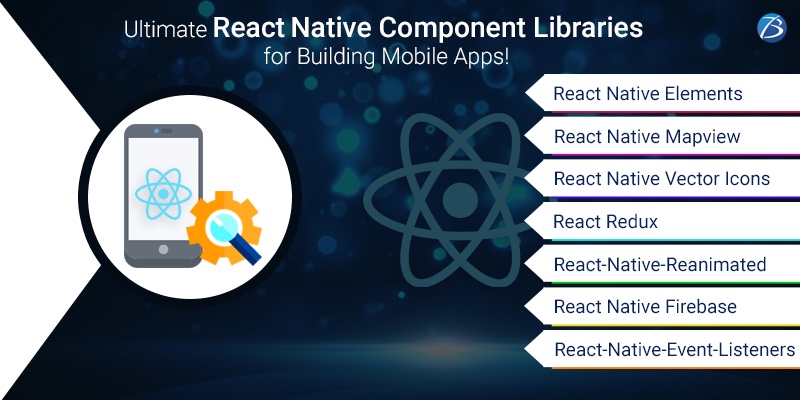
React Native Component Libraries

React Native Elements

Being one of the most popular and easiest component libraries, ‘React Native Elements’ is known for providing a consistent look and feel to the apps. It is coded with native JavaScript. It does not follow an opinionated design system but provides a basic structure with its in-built components, making it a highly customizable cross-platform UI.
The packages from this library include several easy-to-use components like a badge, pricing, divider, overlay, platform-specific search bars, etc. Modifying or updating these components is easy because the props for all these components are present at one central location. In this library, the amount of boilerplate code to be written is comparatively reduced, as react native elements is based more on component structure than the actual design.

React Native Mapview

React Native Mapview provides map components for both iOS and Android platforms. The map style can be customized in several ways. The React Native developers can change the tracking location or the map view position, and also make any points clickable on Google Maps as desired. The zooming feature can be enabled to the specific coordinates or markers or it can be even animated. Markers can be dragged too on the map. The kit provides a wide range of component APIs like MapView, Callout, Marker, Polyline, Polygon, Overlay, Circle, etc.

React Native Vector Icons

This is an extremely useful library that contains a rich set of 3,000+ pre-made icons. These vector icons can be easily customized, extended, or styled to serve the needs of varying projects. It is being widely used in mobile apps as well as by other libraries like React Native Paper. It supports NavBar, Toolbar Android, TabBar, etc. with image sourcing and multi-styling fonts. This library is apt for logos, buttons, etc.

React Redux

Redux is a library that is standalone and can be used with any framework or UI like Ember, Vue, Angular, React, to name a few. React and Redux can be used independently or in combination. React Redux is made to work with the component model of React. If you outline how to get the values your components require from Redux, your component gets them as props. It creates a component which is a wrapper that manages the interaction logic with the store, so that it need not be written separately. It implements automatically complex optimizations from a performance perspective. If Redux is being used with UI Framework, one needs to use the “UI binding” library to connect Redux with the UI framework. React Redux is widely used to store and pass data.

React-Native-Reanimated

This library provides the API that makes the process of creating powerful animations very simple and easy. It gives a low-level abstraction to the animated library API which permits flexibility for interactions based on gestures and animations. Because of its declarative approach, it serializes the interaction in JavaScript and has the ability to recreate it in native iOS and Android.

React Native Firebase

This is the formally recommended collection of packages that enables React Native support to all the Firebase services for both iOS and Android. Firebase is a Backend as a service that provides great advantage to build mobile applications with React Native. React Native Developers with Firebase as backend, can build MVP as it keeps the application cost very low and application prototyping is also very fast.

React-Native-Event-Listeners

An event listener is a callback function that is called when an event object is created. This React Native Event Listener library allows the React Native Developers to add and manage the event listeners in React Native code. Event handling in React is more like inline JavaScript of previous years. React Native Elements can alternatively use event handling properties to respond to user inputs.

Additional Libraries

Other important libraries being used by React Native Mobile App Development Services are React-Native-SVG (to load SVG files, React-Native-Twilio-Video-Webrtc (for video calling), React-Native-photo-editor, React-Native-localize (for multiple languages supports), etc

Final Words:

These are some of the finest React Native UI libraries handpicked for you. Even beginners can easily start working on them. The motive of these libraries is to accelerate your React Native App development process. Therefore, these libraries prove immensely beneficial to a React Native App Development Company to build outstanding robust apps for versatile projects.
Have you used any of these libraries in your projects? Please feel free to comment about your experience and any hurdles you face.

Ionic app development: Creating a Location-sharing app with Ionic!

Ionic app development: Creating a Location-sharing app with Ionic!
ionic app development company
Most of the modern-day applications have the facility of Google maps and location-sharing. Whether a taxi-booking app or a social media app or a food-ordering app, all have this vital feature embedded in the apps. Since this feature has become essential, several businesses have developed advanced location-sharing apps or at least embedded this feature in diverse apps.
So, in this blog, we are going to look at the basic procedure to build a location-sharing app or integrate this vital feature in them. Here we will use Ionic, the popular cross-platform framework, for this purpose. The reason to consider Ionic app development is that this technology is easy to adopt, enables the development of captivating UI/UX, and feature-rich performance-based apps. It is built on AngularJS which offers various functionalities for development and a robust environment that makes the code more manageable. Besides, the Ionic framework utilizes Cordova plugins and allows widget development. Owing to such myriad benefits, a plethora of businesses hire Ionic app development services for architecting enterprise applications.
So let’s get started, but before that, let us have a quick look at the criteria that the Ionic app developers would be assuming before starting with the development.
  1. We will be using Firebase for saving the data.
  2. We will create a custom directive for integrating Google Maps into our application.
  3. We will be creating a mobile app for the Android platform.

Steps to Architect a Location-sharing app with Ionic

Check out the process of employing Ionic application development to create a location-sharing app.

Installations of relevant softwares

  • The first step is to install Node.js which automatically installs npm i.e. node package manager. Now you can install Ionic with the use of npm.
  • Also, install the required dependencies for the Android platform. After installing them, you need to create a blank Ionic project.
  • Now navigate to the project directory iMapApp. After this, you can add the desired platform, develop it, and emulate. Now, a blank app will probably be running in the Android emulator. But, this process of running the app in the emulator every time will be time-intensive. So, it is advisable to use Ionic CLI for running the application in the browser. Once again, it is essential to install the required dependencies with the use of npm.
  • After installing the dependencies, you need to run “ionic serve” in the terminal for the app to run in the browser.

UI Creation

  • You can begin with the addition of a new template for showing the map. Now create a new folder known as www/templates in the project directory. Also, create a file named map.html inside templates.
  • Google Maps will be rendered inside the HTML map where a div known as #map will be present. Also, there will be an input text box below the map for the users to fill the description and also a button for the details to be saved.
  • Now we will be using the “ionNavView” directive to create different templates based on various states. Add this directive to index.html page. The next step is the removal of the current contents of the body tag and addition of the “ionNavBar” directive above the “ionNavView” for building a top bar.
  • The title for the “ionNavBar” will be set from the rendered “ionView”.
  • For the proper organization of the app interfaces into multiple states, the Angular UI router module is utilized by Ionic. Now open www/js/app.js as we will define a state for the map.html template by writing the required code.
  • After implementing this code a new state for the URL “/map” is defined. This state will be rendering the template map.html and will be controlled by “MapCtrl” controller. To set the map as the default state, command “$urlRouterProvider.otherwise(‘/map’)” is used.
  • Now create a file- “controller.js” inside “www/js/” and also add its reference in the file called- “www/index.html”
  • Then define the angular module first for defining controller code inside “controller.js”
  • After this, define the controller “MapCtrl” and then enter the “starter.controllers” module into the starter app. After saving this, you can view the map.html template.
  • Then you should add the Google Map in map.html which can be done by the creation of a custom directive known as “map”. Let us now define the directive in controller.js and add the directive attribute to div #map in map.html.

Adding default parameters like longitude, latitude, zoom in the Maps

  • First, pass the longitude, latitude, and zoom parameters to the google map directive. With the use of parameter “attrs” you can access these attributes inside the link function of the directive.
  • For evaluation of AngularJS expressions, “scope.$eval” is used.
  • The next step is to include the Google Maps API reference in index.html. Using the default values, Google Map’s latitude and longitude can be defined. Also, define map options for Google Map.
  • With appropriate code, add style to “www/css/style.css” for styling the “#map” div.
  • Lastly, save all the modifications to view Google Maps on the map page.

Adding a marker to the Google Maps

  • We need to modify the directive with the right code. Marker’s default position is set as longitude and latitude that is passed as an attribute. Also, the draggable option is set as true.
  • After implementing the code and saving the changes, a draggable marker will be visible in Google Maps.

Tracking the position of Marker

  • For this purpose, we will be attaching a “dragend” event to the Google Maps marker. Also, for attaching the drag end event listener inside the directive, add the right code.
  • After saving these changes, just try to drag the marker. Now inspect the browser console which must include the current longitude and latitude.

Saving all the details

  • In “MapCtrl”, define a $scope variable called “user” which will consist of information like longitude, latitude, and the data that the user enters.
  • In “MapCtrl” controller, create a function known as “saveDetails” which will use “scope.user” variable for fetching the required information.
  • Update the variables- “$scope.user.longitude” and “$scope.user.latitude” in the “dragend” event listener’s callback function when the users will move the marker on the map
  • For updating the model bindings, call the “scope.$apply” function. After this, you need to attach the following:
    • a ngModel directive to the description input text box
    • a ngClick directive to the save button
  • Now save the data to Firebase. For this, you will first need to register with Firebase if you don’t have an account. After logging in, you will get a unique firebase URL.
  • After signing to the Firebase account, in the dashboard, you will find a plus link next to this URL. Click on that plus link and enter the below-mentioned inputs to get a sub URL- /MapDetails.
    • value as 0
    • name as “MapDetails”
  • To use firebase in the app, Include the script references in index.html. Insert firebase in controller.js and MapCtrl controller. Create a firebase object inside this controller. Create an instance of the firebase object. Use the firebase push API inside the saveDetails function, for saving the data to firebase. Once saved, refresh the application.
  • Now just drag the marker to a certain location on the Maps, enter some description and save this. All this data should be present when you check the firebase dashboard.
  • After the data is saved, using the Ionic popup, create an alert for notifying the users. In the MapCtrl controller, inject the $ionicPopup. Again, in the MapCtrl controller, add a function known as “showAlert”.
  • This function calls the “$ionicPopup” service for showing a pop-up having a template and a title.
  • After this, you should call “showAlert” in the success callback of the push API call.
  • Finally, save all the changes and the details once again. After saving these details in Firebase,you will get a pop-up showing a success message. This completed the process.

Conclusion:

We just saw the step-by-step method to integrate Google maps in the Ionic Apps. We hope this will be useful to the Ionic developers, an Ionic mobile app development company as well as the entrepreneurs who intend to create the best location sharing app. aiming to design impeccable apps with location-sharing functionality.
Was this blog useful to you? Let us know your vital thoughts in the comment section.