Best things to know about .Net Framework

Best things to know about .Net Framework
dot net development company
The Dot Net framework – leveraged for creating various kinds of enterprise applications and websites – has garnered a great deal of traction in recent times. The unique selling points of this framework are:
  • Stability, security, and scalability
  • Is robust and trustworthy
  • Displays high compatibility due to its ability to reuse codes/components
  • Ensures effortless development
  • Support for numerous programming languages
  • Platform independence
  • High-end performance
  • Cost-effectiveness
  • The availability of a host of tools and editors
  • A technically sound community available for assisting with .Net related queries and issues
Dot net developers and dot net companies must be well versed with its key offerings, USPs, as well as crucial aspects of the framework and its functioning. This post provides you with all-inclusive information about the dot net development ecosystem. Here we commence!

Dot net Framework: A Synopsis

Dot Net (.Net) is a free, open-source, cross-platform software development platform devised by Microsoft. It is used for architecting various kinds of apps for mobile, web, desktop, gaming, and IoT platforms. It is also used for building websites and web services. With the dot net framework, one can use various languages, libraries, and editors.
The first version – .Net framework 1.0 – was launched in 2002 and was meant to develop apps for the Windows platforms. Thereafter, Microsoft has rolled out several enhanced versions to keep this framework updated with changing market trends; the latest version being .Net framework 6.12.0.122.
Using dot net, you can build Web-based as well as Form-based Apps applications. This framework is known for supporting a wide range of programming languages including Visual Basic, C#, and F#; and this provides plenty of choice to the .Net app developers while crafting app solutions.

Dot net: Key Offerings

A Huge Collection of Comprehensive Libraries
The Dot Net eco-system offers a huge assemblage of pre-defined libraries offering simple/complex data structures. It is a systematic app development ecosystem that ensures quality and also enables reengineering and migration. Moreover, .Net extends its support to a plethora of languages, technologies, and software tools. Consequently, dot net developers enjoy the privilege of creating functionalities that are based on the needs and accordingly write the code. Furthermore, a dedicated library for functions like encryption, database access, security, etc. is also available.
ASP.NET: Back-end Development Tool
ASP.NET, a crucial and handy software tool, is an open-source web app creation platform for executing back-end functions. It is the key tool offered by the Dot Net eco-system for developing various dynamic web solutions like websites, web apps, web services, etc. with JavaScript, CSS, HTML, and server scripting. Any .Net language can be used for writing ASP.NET apps.
The presence of the ASP .NET MVC (Model-View-Controller) architecture is another USP of the dot net framework. On account of this development model, there’s better separation between the app’s code and the UI code and it becomes easier for software professionals to perform unit tests as well as to conduct Test-driven Development (TDD). This leads to better code management and guarantees code security. Owing to the MVC approach, .Net developers need not worry about ViewState and IsPostBack each time and hence can build apps as per their natural workflow, resulting in improved efficiency.
Moreover, ASP .Net WebHooks are used to connect Web APIs with SaaS services. It also allows using additional extensions that facilitate web development.
Visual Basic .Net and C#: Main Programming Languages
The Dot Net framework consists of as many as thirty-two programming languages including Visual Basic .Net, C#, F#, Boo, A Sharp, Cobra, Oxygene, IronPython, Fantom, etc. Out of these, Visual Basic .Net and C# are the most notable ones. Both of these languages are used for the front-end development of various kinds of apps starting from web solutions to desktop apps.
C# is an object-oriented language and is quite similar to Java and C++. It has been designed to meet the needs of the Dot Net platform and facilitates in crafting complex app solutions that are scalable and flexible as well.
Visual Basic .Net is also an object-oriented language meant for the .Net platform. It is employed for creating large-scale web apps, gaming apps, simple command-line tools, and graphical user interfaces.
Visual Studio
Visual Studio is a powerful IDE (Integrated Development Environment) used for writing the .Net and C# programs and is free to download. It supports an array of functions like interface designing, code editing, debugging, server management, analyzing performances, etc.
Ability to build Different Types of Applications
This programming framework comes with a plethora of features and guidelines; and is capable of developing apps/solutions for diverse platforms including mobile, web, and Windows.

Dot net: Crucial Aspects to watch out for

dot net developers
Dot Net is now Open-source
The .Net framework became open-source in 2014. To be precise, certain portions of the framework are available under the open-source license. C# Roslyn is an example of an open-source compiler created by Microsoft, under the Apache license; its source code can be downloaded from GitHub. Owing to its open-source nature, the .Net framework enjoys the following advantages:
  • It can be used as well as distributed amongst users for free
  • Users can mold this framework to suit their project requirements
  • The open-source environment enables direct project access to the project vendors, partners as well as associates. Project vendors can download and make changes to the project; whereas vendor partners can only download the project.
Dot Net is not meant for Windows Only
Initially, .Net was meant for Windows only. But, after the NET Core update rolled out by Microsoft in 2016, Dot Net can now run on several platforms such as Mac OS X and Linux. On account of being an open-source as well as a cross-platform development technology, it enables developers to add new platforms to applications. It is also employed for building Cloud and IoT apps and offers several libraries, a compiler, and a core runtime.
Support for Single-File Apps
The updated version .NET 5 had added the support for single-file apps. This feature allows the .NET developers to publish/deploy apps and their dependencies as a single file; wherein the dependencies are bundled into one file. In earlier versions, single-file apps could support binaries only. But .NET 5 update provides a new internal structure that supports direct execution and at the same time, doesn’t affect performance.
A Unified System with CLR and FCL
The dot net framework consists of the CLR and FCL. The function of CLR or the Common Language Runtime is to manage the program execution written in various languages; while FCL or the Framework Class Library is a set of standardized types that helps in running .net apps. CLR and FCL together create an eco-system that enables different programming languages to interact natively, thereby representing a unified system.
A Big Umbrella: .Net’s Compatibility and Interoperability
Dot Net is considered to be a big umbrella as it is compatible with a plethora of tools, technologies as well as languages. It offers a systematic eco-system for software development that is not only a good choice for app building, app migration, and reengineering; but also comes with a promise of quality assurance.
Besides its support for a wide range of tools, skillsets, and languages; this framework offers interoperability as well. Interoperability refers to the capability of specific software or hardware to virtually work with various kinds of hardware/software, including the ones that have not yet been discovered. Dot Net is interoperable with most standard programming languages and operating eco-systems.
Its interoperability can be classified into three broad categories – COM interop (dot net with COM components); P/Invoke (dot net with Win32 DLLs); and .Net interop (COM components with dot net). COM refers to the Component Object Model that was introduced by Microsoft as the binary-interface standard in between 2 binary modules – a user-run program and a library. COM explains the standard through which these two binary modules unite as well as interact with each other. Accessing the .Net components from COM components using dot net runtime is referred to as forwarding compatibility, whereas, accessing the old code COM from dot net components is known as backward compatibility.
Adopted by Several Big Players
The Dot Net technology has been adopted by several top-layer global companies across diverse industrial domains. Some of them are Accenture, Dell, TCS, Epic Systems, Dell, Quicken Loans, and TitleSource. These big market players trust the .Net framework owing to its reliability, easy learning curve, and popularity amongst developers.

Final Thoughts

Thus, .Net is a standard software framework that programs and runs mobile as well as web apps seamlessly. Its integrated development environment ushers in myriad advantages for developing software solutions. And, the good news is that the .Net core framework awaits a brighter future ahead and is expected to grow exponentially in the years to come.
Biz4Solutions, a distinguished outsourcing software development firm, possesses extensive experience in creating effective .Net solutions for various platforms. So, if you are looking for a dot net development company, reap the benefits of our high-end .Net development services.

Developing a Desktop App using React Native for Windows: Step-by-step Guidance!

Developing a Desktop App using React Native for Windows: Step-by-step Guidance!
react native app development
Would you like to architect a premium quality Windows Desktop Application? Well then, employing React Native for desktop/Windows is one of the most preferred solutions for desktop application development. The reasons are manifold.
Facebook devised React, a free and open-sourced library known for crafting dynamic user interfaces. Later on, the Facebook team coined React Native. Using the React Native framework, developers were able to build cross-platform native mobile applications with React as the core interface. Furthermore, they were able to develop native mobile apps for iOS/Android, employing a single codebase based on React syntax.
This blog provides useful insights on React Native for Windows, its usage in a project, and guides you through the key technical steps involved in building a React native desktop app. So, let’s get the ball rolling!

React Native for Windows: Overview

React Native Windows was devised by the Microsoft team a couple of years back and is actively created to date with an objective to keep its releases parallel to the React Native releases rolled out by Facebook.
React Native Windows allows using the React Native framework on desktop. It resembles React Native in terms of architecture, tools, languages used, eco-system, and developer experiences. Therefore, React Native app developers can easily comprehend and work with React Native for Windows. The only aspect that developers should watch out for is that React Native Windows is rooted in Windows technologies and hence, in such projects, the Universal Windows Platform (UWP) will be invoked at the back of the JavaScript code.

Using React Native Windows in a Project

There are two major approaches while setting up a React Native Windows project: Greenfield and Brownfield
  • Greenfield: A greenfield project can be created effortlessly as all steps that need to be followed are documented by the Microsoft team in a guide named “Getting Started”. And, once the project is created, you need to view your repository that is provided with the Windows/ directory. Here, you will find the native windows implementation. However, it is necessary to separate the native implementation from the main JavaScript implementation for keeping the project in good shape. This can be done by creating a separate directory for storing all the JavaScript sources. You can name the directory as src/,source/ or any other name as per your standards. Now, you are ready to start implementing the application.
  • Brownfield: The UWP (Universal Windows Platform) application is based on XAML pages that contain the entire content of the app; just like a React Native Windows. App that consists of a single page that stores the main App.js component. Therefore, if you already have the UWP app project as a legacy, and wish to port it to RNW, or extend the project employing RNW content the following steps needs to be executed: Creating a RNW project in a similar manner as the Greenfield project, moving the existing UWP solution to the project that has been created, and adding a new XAML Page with the below content.
<Page
x:Class=”RNWProjectName.RNWContentPage” xmlns=”http://schemas.microsoft.com/winfx/2006/xaml/presentation” xmlns:x=”http://schemas.microsoft.com/winfx/2006/xaml” xmlns:react=”using:Microsoft.ReactNative” xmlns:d=”http://schemas.microsoft.com/expression/blend/2008″ xmlns:mc=”http://schemas.openxmlformats.org/markup-compatibility/2006″ mc:Ignorable=”d” Background=”{ThemeResource ApplicationPageBackgroundThemeBrush}”> <react:ReactRootView x:Name=”ReactRootView” ComponentName=”RNWProjectName” Background=”{ThemeResource ApplicationPageBackgroundThemeBrush}” MinHeight=”500″/>
</Page

Developing a Desktop App with React Native for Windows: Key Steps

react native app developers
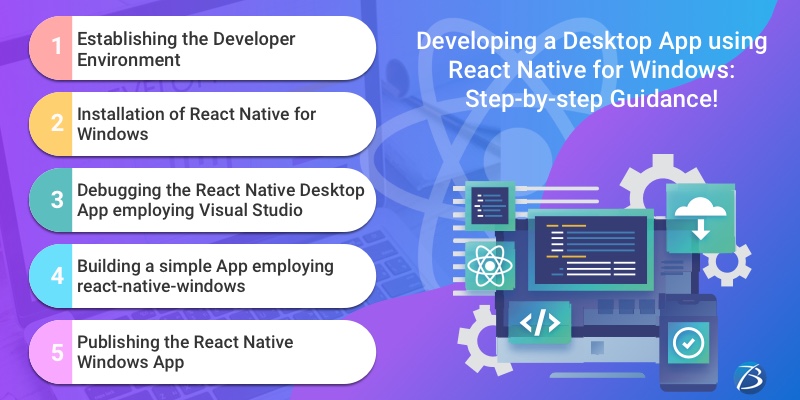
Establishing the Developer Environment: Step1
  • You need to install the following version of Windows on your computer: Windows 10.0.16299.0 (a.k.a.,1709, Fall Creators Update, or Redstone 3) or a higher version.
  • Thereafter, install the required dependencies. For this, you need to run this command given below in an elevated PowerShell Window
Set-ExecutionPolicy Unrestricted -Scope Process -Force; iex (New-ObjectSystem.Net.WebClient) . DownloadString (‘https://raw.githubusercontent.com/microsoft/react-native-windows/master/vnext/Scripts/rnw-dependencies.ps1 ’)
  • This command will activate the developer mode and install the Visual Studio, the Node.js LTS version, and the Chocolatey package manager.
  • It’s an added advantage if your computer possesses a physical memory of 8GB or higher than that because an above-average physical memory is needed for running the windows build processes.
Installation of React Native for Windows: Step2
Here’s how to set up react-native on windows. Check out the steps to follow for developing a Windows Desktop App employing React Native!
    • Open a command-line window and then, navigate to the directory in which you would like to build the Windows Desktop App project.
    • Run a command along with the Node Package Executor (NPX).
      Npx react-native init — template react-native@^0.63.2
      This command will enable you to create a React Native project without having to either carry out any local installations or globally install any extra tool. It will generate a React Native application within the directory specified by <projectName>
    • Then, you need to switch to the project directory for installing the React Native for Windows packages by running this command:
      cd projectName
      npx react-native-windows-init -overwrite
    • For running the application, launch your web browser at first, and thereafter run the following command:
      npx react-native run-windows
Important Note: The first build process involves compiling several C++ sources files and so takes some time to get completed. There is a possibility that the build process might stop and show an error. In that case, you have to run a command for detecting those errors.
Here are the commonest errors that might occur during the build process, along with possible solutions:
  • Error: Missing Windows 10 SDK; Solution: Install Windows 10 SDK from the Visual Studio Installer
  • Error: The React Native build fails due to a certificate error; Solution: Create a new certificate for the autogenerated UWP project
  • Error: Issues with paths having spaces in certain modules; Solution: Ensure that there aren’t any spaces in your project path
Debugging the React Native Desktop App employing Visual Studio: Step3
Follow these steps to debug the React Native desktop application.
  • Install Visual Studio 2019 and verify the following options: (1) Workloads – UWP development and desktop development using C++; (2) Individual Components: Development activities and support for Node.js development.
  • Open the solution file contained within the app folder in Visual Studio.
  • Then select the debugging configuration as well as the x64 platform from the combo box controls that is there on the left side of the “Run” button and below the menu items called “Team and Tools.”
  • Now, run the command yarn start from the project directory and thereafter, wait until the React Native packager reports success.
  • Then, either select the option “Run”, which is visible towards the right side of the platform combo box control within the VS, or select the option: Debug->Start without Debugging menu item. Once this step is done, your new app is visible. Also, Chrome should have loaded this URL in a new tab: http://localhost:8081/debugger-ui/in.
  • Select either of these two keys – Ctrl+Shift+I OR F12 – for opening Developer Tools in your web browser.
Inside React Native Windows: Key Aspects you Need to Know
  • There are various pre-defined React components – Image, Text, View, ScrollView, and TextInput – within the core of the React Native framework.
  • The official React Native runtime is capable of rendering genuinely native UI building blocks for the iOS/Android OS. The native rendering module was made entirely extendable by the React Native team and this enabled the dev community to extend it for other platforms too.
  • Windows app target support was added by the react-native-windows project that is capable of generating a Windows app having a truly native Universal Windows Platform GUI from a prototypical React Native project.
  • UWP apps function on every popular platform including Windows 10, Windows 10 Mobile, Windows Mixed Reality, and Xbox One system software.
  • A JavaScript engine – just like the one used in the original React Native project – is used for running the portion of the app that involves JavaScript. In the beginning, the Chakra JavaScript engine was used in the react-native-windows project, but later Facebook’s Hermes JavaScript engine was integrated into the development environment for enhancing the performance.
Building a simple App employing react-native-windows: Step3
Now create a simple UWP application that will display a greeting message after you submit your first name and last name. The steps are as follows:
  • Add the required code into the App.js file.
  • Add the required core components and core APIs of the React Native environment and React’s “useState Hook” for receiving user inputs.
  • Then, you get native Universal Windows Platform UI components from React Native components.
  • The react-native-windows project extension supports a Yoga-friendly syntax and as such, it can facilitate complex layout implementations.
  • Besides, the community of React Native app developers has created several amazing libraries that function on iOS/Android/ Windows apps.
  • App distribution is enabled if you open the UWP app source with Visual Studio.
Publishing the React Native Windows App: Step3
Use Microsoft store to publish your application. To build the standalone react native windows app:
  • Open your app solution in Visual Studio. You will find this solution in the windows/directory contained within the project’s root folder. The windows/directory contains the .sln file with your app’s name in it.
  • After opening and loading the solution in the Visual Studio, select the “Release configuration” option present in the “Configuration Manager” drop-down menu and then create it.
  • For building a ready-to-be-published package, click the option – Project-> Publish -> Create App Packages.
  • You will find the artifacts of the build at the same directory as .sln file- <root>/windows/AppPackages/directory – in which your .sln file is there.

Conclusion

So, this is how you need to establish the set-up of a React Native Windows App and thereafter develop, debug, and publish the same. The React Native for Windows project undoubtedly renders platform-specific UI elements from a codebase that is based on JavaScript.
For any kind of technical assistance concerning React Native app development, contact Biz4Solutions, a proficient mobile app development firm delivering high-end React native app development services to global clients across various industrial domains. Our skilled professionals possess the required experience and technical expertise to deliver highly functional and productive software solutions.